Shopping Cart (0)

Close

No products in the cart.
track you order
customer care +91 8882775693

Softube Console 1 MKII

48,395

In stock

Estimated delivery dates: Feb 27, 2026 - Mar 3, 2026

In stock

Get GST invoice and save upto 18%

Product Highlights

Intro and overview

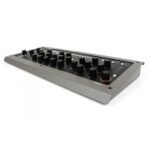
Softube Console 1 is a new type of audio mixer. It is used together with your favorite digital audio workstation (DAW), and just like a traditional mixing console, you can route any or all DAW tracks to Console 1 and mix them from within that system. This gives you access to Console 1’s world class sounding effects sections and lets you control everything from the hardware unit, using physical knobs and buttons.

Console 1 gives you both the great sound that has made Softube world famous, as well as a tactile and intuitive workflow that speeds up your mix work substantially compared to mouse mixing on the computer.

004-security

1 Year
Warranty

003-genuine

Genuine
Products

008-help-desk

Free Tech
Support

001-free-delivery

Secure
Shipping

006-money-back-guarantee

Absolute
Satisfaction

007-van

3 Days
Dispatch

The SSL SL 4000 E Channel

Included in your purchase is Softube’s model of a Solid State Logic SL 4000 E, one of the most famous and coveted mixing consoles in the world. SL 4000 E consoles have been installed in hundreds of the world’s leading studios, and it is said that Solid State Logic’s 4000 series have been used on more platinum selling records than all other console models combined! This is for good reason. The SL 4000 E has a signature sound that is transparent enough to work for all music styles, but still adds its touch of luxury. Things simply sound like a record when they’ve been run through the SL 4000 E.

With Console 1, you get the famous black knob E242 equalizer, the classic channel compressor, the very musical gate/expander and the sweet high/low cut filters from the SL 4000 E channel. We also modeled the unique harmonics, distortion and non-linearities you get from running the SL 4000 E into overdrive. Controlled by Console 1’s Drive knob, you can use it subtly on all channels to glue the mix together like a slightly overdriven SL 4000 E does, or not so subtly to add edge and presence to selected sounds.

In addition, you get Softube’s unique Transient Shaper, which is not modeled off the Solid State Logic SL 4000 E or any other unit for that matter. Read more about Transient Shaper in Shape.

On Softube’s web site there are many other channel strips to purchase for Console 1, for example the Weiss Gambit Channel, Chandler Limited Zener Bender, Empirical Labs Trak Pak, American Class A and British Class A.

Solid State Logic SL 4000 E was introduced in 1980 and is to this day used in a large number of high end studios all over the world. Softube’s model includes the most sought after equalizer version, the black knob E242.

Console 1 Compared to Traditional Mixers

To understand what Console 1 is, it may be helpful to compare it to existing mixer types. There are quite a few differences between Console 1 and most traditional mixers—both digital and analog ones.

First of all, Console 1 is strictly made for mixing, it’s not a recording mixer with microphone preamplifiers. With Console 1, you have access to one channel at the time, the one you have selected with the corresponding channel selector button on the hardware unit. This gives the hardware unit a small footprint, but still offers direct access to more functions and effects per channel compared to most physical mixing consoles—as mentioned in the previous section, equalizer, compressor, distortion, gate, high and low cut filters and our Transient Shaper. All Console 1 settings are saved with your DAW session for total recall, and each parameter can be automated using the hardware knobs. You can open a DAW session mixed using Console 1 without having the Console 1 hardware connected, and you can even adjust settings using the mouse if you happen to be away from your Console 1 hardware.

Furthermore, the Console 1 hardware has no on-board DSP power, all the audio processing takes place within your computer. This has several advantages compared to a physical mixer, most obvious is portability—you can open your sessions without the Console 1 connected, but also no need for an external power supply—the Console 1 hardware is USB powered.

The Console 1 software is also very CPU efficient, but please refer to General System Requirements (Mac and Windows) to see if your computer is powerful enough to use with Console 1.

And obviously, most mixers are contained in one single hardware unit. The Console 1 system consists of three different components that work in tight integration: the Console 1 hardware, the On-Screen Display application and the DAW plug-in.

One might say there is also a fourth component, namely the channel strip or single effect you have loaded into the separate Console 1 tracks. If you’re new to Console 1, the channel strip will be the SSL SL 4000 E that is included in the purchase. There are many more plug-in channel strips for Console 1 such as that one, that can be purchased separately. And you can also load other Softube plug-ins into the system. See Loading Other Channel Strips and Effects.

Getting started

In order to install the required software and activate your license, first make sure your computer has internet access. Use any browser to visit the page: www.softube.com/console1-install. Here, you will be guided through all the necessary steps. You will be asked to enter the unique license code included in the Console 1 shipping box.

Setting Up Your First Console 1 Session

When you have gone through the registration process on Softube’s web site, you are ready to set up your basic Console 1 session. You may want to save this as a template session in your DAW, so you will not have to do this for every new piece of music you start working on. Please refer to your DAW’s manual on how to save a template session, as well as any other steps mentioned below that refer to actions in your DAW.

  1. Connect the Console 1 hardware to an unoccupied USB port on your computer. The Softube logo in your computer’s control panel will turn from grey to green.
  2. Launch your preferred digital audio workstation (DAW) application. Console 1 runs with any host that supports VST2, VST3, AAX and Audio Units plug-in formats.
  3. Launch an empty session in your DAW.
  4. Insert the Console 1 plug-in on as many tracks as you like. We recommend inserting it on all single tracks, even aux channels, buses and the main out channel.

The audio on any track where you have inserted the Console 1 plug-in will now be routed into the Console 1 system and back to the same DAW channel. See next section for setting the correct track name and number.

Track Name and Number

Most DAW hosts support automatic transfer of track name and number from the DAW host tracks to the corresponding Console 1 tracks. This means that any name you have given a track in the DAW host automatically appears on the corresponding track in the Console 1 mixer. Similarly, if the DAW host supports automatic transfer of track number, the number of the DAW track will be the same as the corresponding track in Console 1, so the track layout will be the same in Console 1 as in your DAW. This in turn means that if you decide to rearrange the track order in your DAW, this also gets reflected in the Console 1 mixer.

If the DAW does not support automatic track numbers or names, the message area in the plug-in GUI will notify you about this. If track number is supported, you will now be able to open Console 1’s On-Screen Display (by pushing the Display On button in the top left corner of the hardware) and see all the tracks laid out and named just as they are in your DAW session.

However, some DAW hosts do not support automatic transfer of track name and number from the host to Console 1. Pro Tools support automatic transfer of track name, but not number. This will be indicated by a message saying “Manual track numbers, automatic track name from DAW.” In this case, you will need to manually select to which Console 1 track the Console 1 plug-in routs the DAW channel’s audio, and possibly also manually enter the track name for it to display in the Console 1 system.

If your preferred DAW does not support automatic transfer of track number: When a Console 1 plug-in is instantiated on a DAW track, it will by default be placed on the lowest available track number. This means that it can be a good idea to launch the Console 1 plug-ins by starting on DAW track 1, which will then be placed on Console 1 track 1, then move on to DAW track 2, which will be placed on Console 1 track 2 (because this is now the lowest available track), etc. This should save you from most of the manual work of placing the Console 1 tracks in a way that corresponds to how they are laid out in the DAW.

Softube Console 1 MKII (2)

If you want to turn off automatic track name/number or the Integrated DAW Control, please click SETUP in the plug-in (not the On-Screen Display). For more information, please see Disabling DAW Integration.

Follow these steps to place a Console 1 track on a specific track number:

  1. Open the Console 1 On-Screen Display.
  2. Open Settings by pressing Shift and Track Selector 20 (Settings). Scroll down to “Rearrange Tracks” and click Solo/OK.
  3. Select which track you want to move using the track selector buttons.
  4. Select where you want to put it.
  5. Select the next track you want to move, and repeat until you’re done!

You can only put 1 instance of the Console 1 plug-in on each track.

Integrated DAW Control

In many DAWs, such as Presonus Studio One, Ableton Live, Reaper, FL Studio, Digital Performer and Cakewalk SONAR, vital DAW functions can be controlled right from the Console 1 hardware—allowing an even smoother workflow.

Integrated DAW Control only works in VST3, not VST2.

Track Selection
Console 1 allows the DAW track selection to be reflected in Console 1, and vice versa.

Track Color
Console 1 allows the DAW track colors to be reflected in Console 1.

Volume and Pan
As always, the Console 1 Output Volume and Pan knobs can be used to control the corresponding settings in the Console 1 software—but they can also be switched over to control the pan knob and volume fader on the selected DAW track.

Solo and Mute
The Solo and Mute can also be switched to control the selected DAW track or to control these settings in the Console 1 software.

DAW Send Levels
Hold SHIFT and control the selected DAW track’s send levels directly from the Console 1 hardware.

For more information regarding the Integrated DAW Control, please see Integrated DAW Control.

Solo Safe on Aux Channels and Buses (without Integrated DAW Control)

If your DAW supports Integrated DAW Control, Solo and Mute will work automatically.

As mentioned above, we recommend that you insert the Console 1 plug-in on all your DAW channels, including single tracks, aux channels and buses. But in order for Console 1’s Solo function to work as expected, you should set aux channels, effects send channels, subgroup buses and the master bus—essentially, any channels in your DAW mixer that are not single audio or software instrument tracks—to Solo Safe. If you are using an aux channel for the incoming sound of a Rewire sound source, such as Propellerheads Reason, this can however be viewed as an instrument track. We consequently recommend you do not set this to Solo Safe.

See Understanding Solo Safe if you’re interested in why this setting is needed for Console 1’s Solo function to behave as expected. Otherwise, simply follow these steps:

  • Open the Console 1 plug-in on all aux channels (except Rewire aux channels that handle incoming sound signals), effects channels, subgroup buses and the master bus in your DAW.
  • Activate Solo Safe setting by clicking this button in the plug-in window.

Any time you press Solo on the Console 1 hardware, the text “SOLO SAFE” will appear in the On-Screen Display above any channel that has been set to SOLO SAFE.

Console 1 Plug-in Overview

Softube Console 1 MKII (3)

Track Number: This is automatically set to correspond to the DAW track, in DAWs that support this function. If your DAW does not support automatic transfer of the track number, click the number set this manually.

You can also press Shift + 20 (Settings) to rename or re-number tracks from the On-Screen Display. That is the preferred method, and is a lot easier to use.

Track Name: This is automatically set to correspond to the DAW track, in DAWs that support this function. If your DAW does not support automatic transfer of the track name, click the name to set this manually.

Solo Safe:* Clicking this excludes the track/ channel from Solo. When another track is set to solo, Solo Safe* channels will not be silenced. This option is recommended for all aux channels, subgroups and the master bus.

Message Area: Error messages or information coming from the OSD or DAW is seen here, for example notifying whether track name or number is supported.

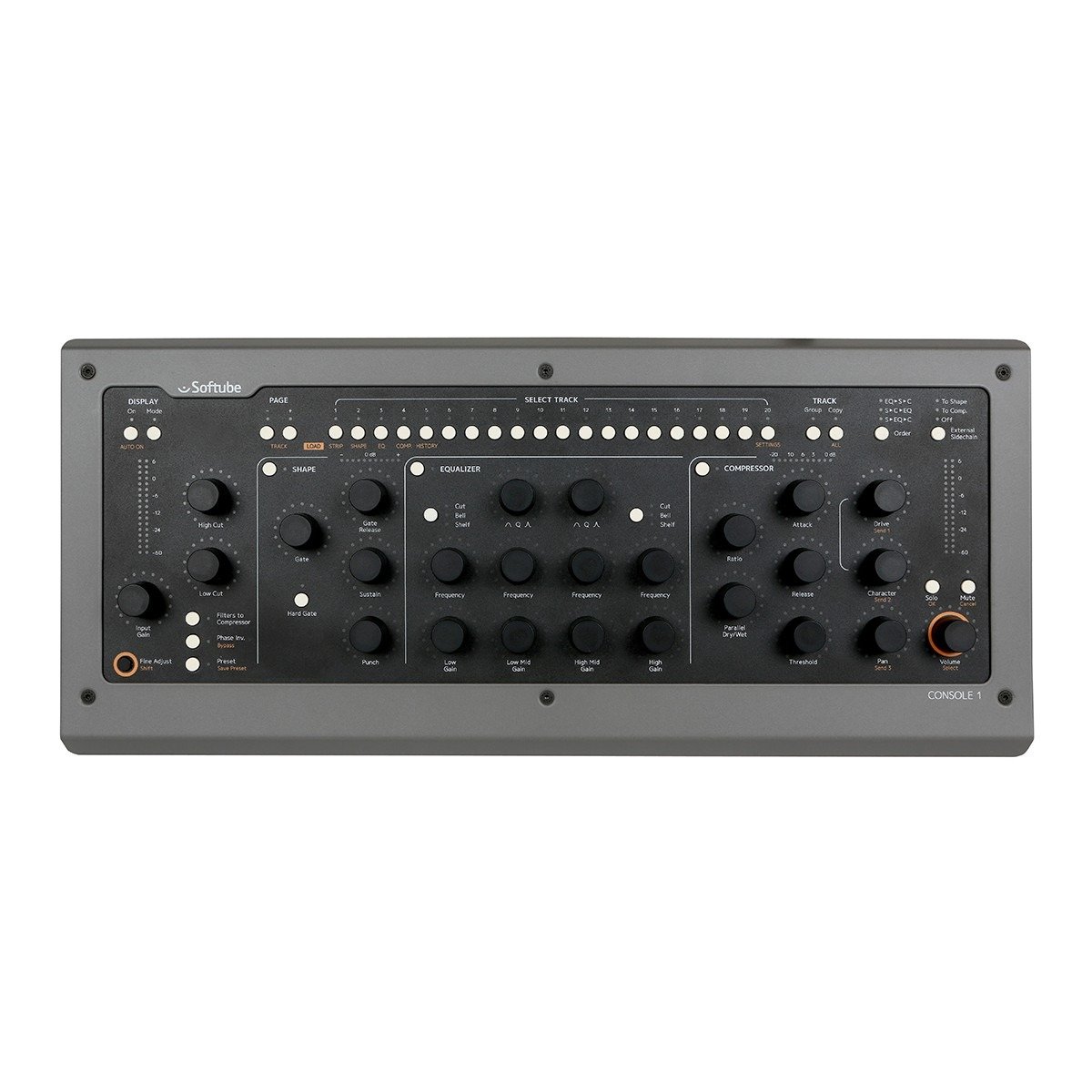
Console 1 Hardware Overview

Softube Console 1 MKII (4)
  1. Display on
  2. Display mode
  3. Page down
  4. Page up
  5. Load strip
  6. Load shape
  7. Load EQ
  8. Load compressor
  9. History
  10. Load Drive
  11. Track selector buttons
  12. Settings
  13. Group
  14. Copy
  15. Order
  16. External sidechain. Track buttons 17, 18 and 19 are also used to enter Compact and Favorite Modes.

Display On:* Toggles Console 1’s On-Screen Display on and off. Hold Shift and push Display On* to set the On-Screen Display to automatic mode. In this case, the display pops up every time you change a setting, and automatically goes away a few seconds after your latest adjustment.

In the tray icon/menu bar icon of the On-Screen Display you can toggle the Display, as well as saving the current settings.

Display Mode: Toggles through different display modes, such as the Track Overview mode, showing knobs instead of text, and different meter bridge views.

Page Up, Page Down:* Select which bank of tracks the 20 channel selector buttons control. You can have a virtually unlimited number of banks and tracks. The Page Up LED will light up if there are tracks on a page above the current, and vice versa with the Page Down LED. Hold Shift and push Page Up or Page Down** to step between tracks instead of pages.

If you’re in a menu you can use Page Up and Page Down to step through the menu options, instead of using the Volume/Select knob.*

Track selector buttons:* Select the channel you want to adjust, of 1-20 (or 21-40, 41-60 etc, depending on what page you selected with the Page Up and Page Down buttons. The selector buttons for tracks 1-5 and 20 have alternate functions, accessible by holding Shift*.

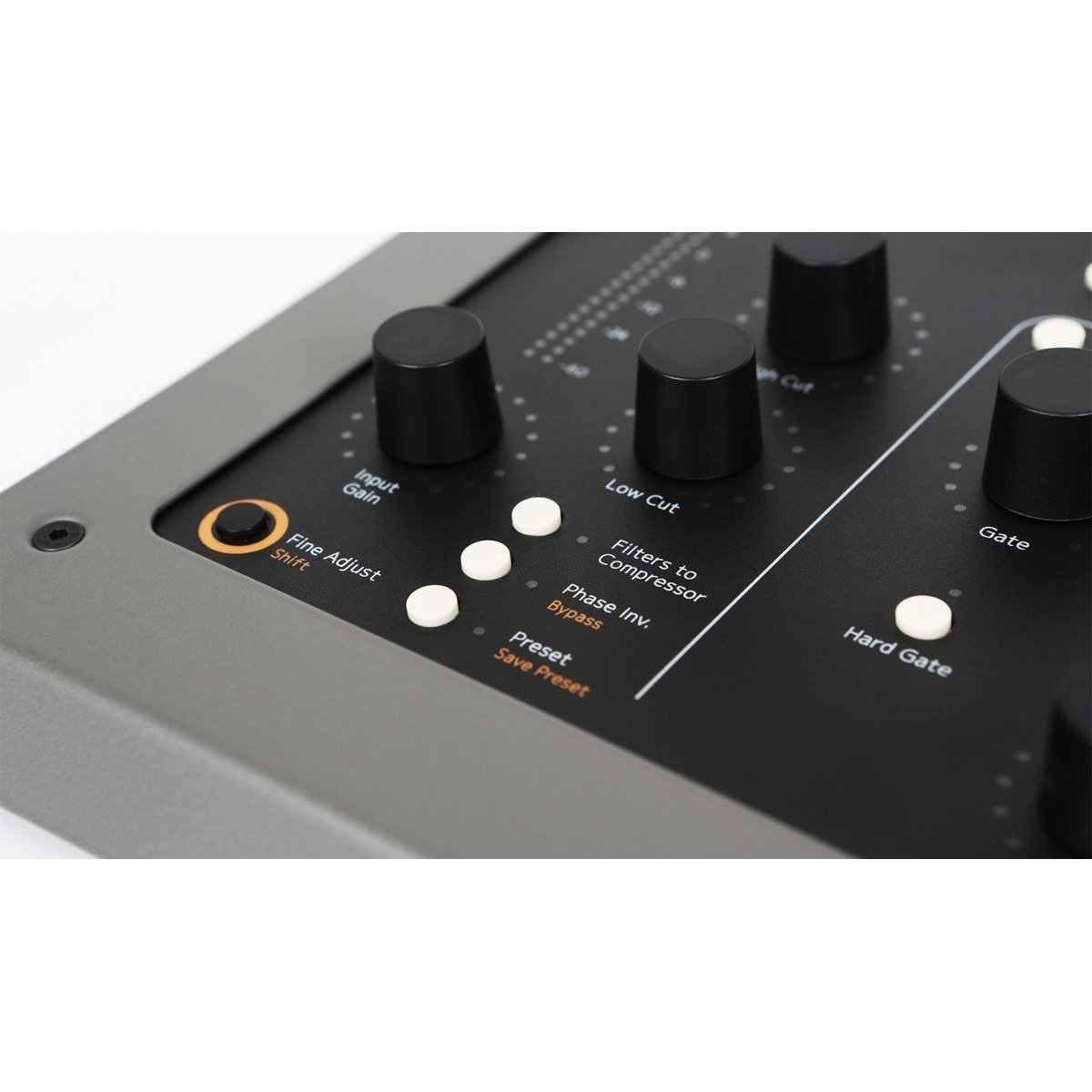
Load Strip:* Selector for track number 1. Hold the Shift/Fine Adjust* button to select a new channel strip to load into the selected track.

Load Shape:* Selector for track number 2. Hold the Shift/Fine Adjust* button to select a new Shape plug-in to load into the selected track.

Load EQ:* Selector for track number 3. Hold the Shift/Fine Adjust* button to select a new equalizer to load into the selected track.

Load Compressor:* Selector for track number 4. Hold the Shift/Fine Adjust* button to select a new compressor to load into the selected track.

History:* Selector for track number 5. Hold the Shift/Fine Adjust button to activate the History* function and undo your actions.

Load Drive:* Selector for track number 6. Hold the Shift/Fine Adjust* button to select a new output drive to load into the selected track.

Compact Mode: Selector for track number 17. Hold Shift/Fine Adjust button to enter Compact Mode.

Favorites Mode: Selector for track number 18. Hold Shift/Fine Adjust button to enter Favorites Mode.

Mark as Favorite: Selector for track number 19. Hold Shift/Fine Adjust button to mark the current track as favorite (for Favorites Mode).

Settings:* Selector for track number 20. Hold the Shift/Fine Adjust* button to enter the Settings menu.

Copy:* Duplicate settings from one track to other tracks. Hold Shift and push Copy* button to select all tracks at once. Any adjustments made while you hold this will affect all tracks.

Group:* Press and hold while you select two or more tracks to form a group. Hold together with All* button to duplicate settings from one track to another, or several others.

Order: Changes the order of the three main effects sections. Default state is Shape into equalizer into compressor (S→EQ→C). Press repeatedly to toggle between this state, or shape, compressor and equalizer (S→C→EQ) or equalizer, shape and compressor (EQ→S→C).

External Sidechain: Determines whether an incoming external sidechain signal should have no effect (OFF), be routed to the compressor sidechain (TO COMP) or to the sidechain of the gate part in the Shape section (TO GATE).

Connectors:

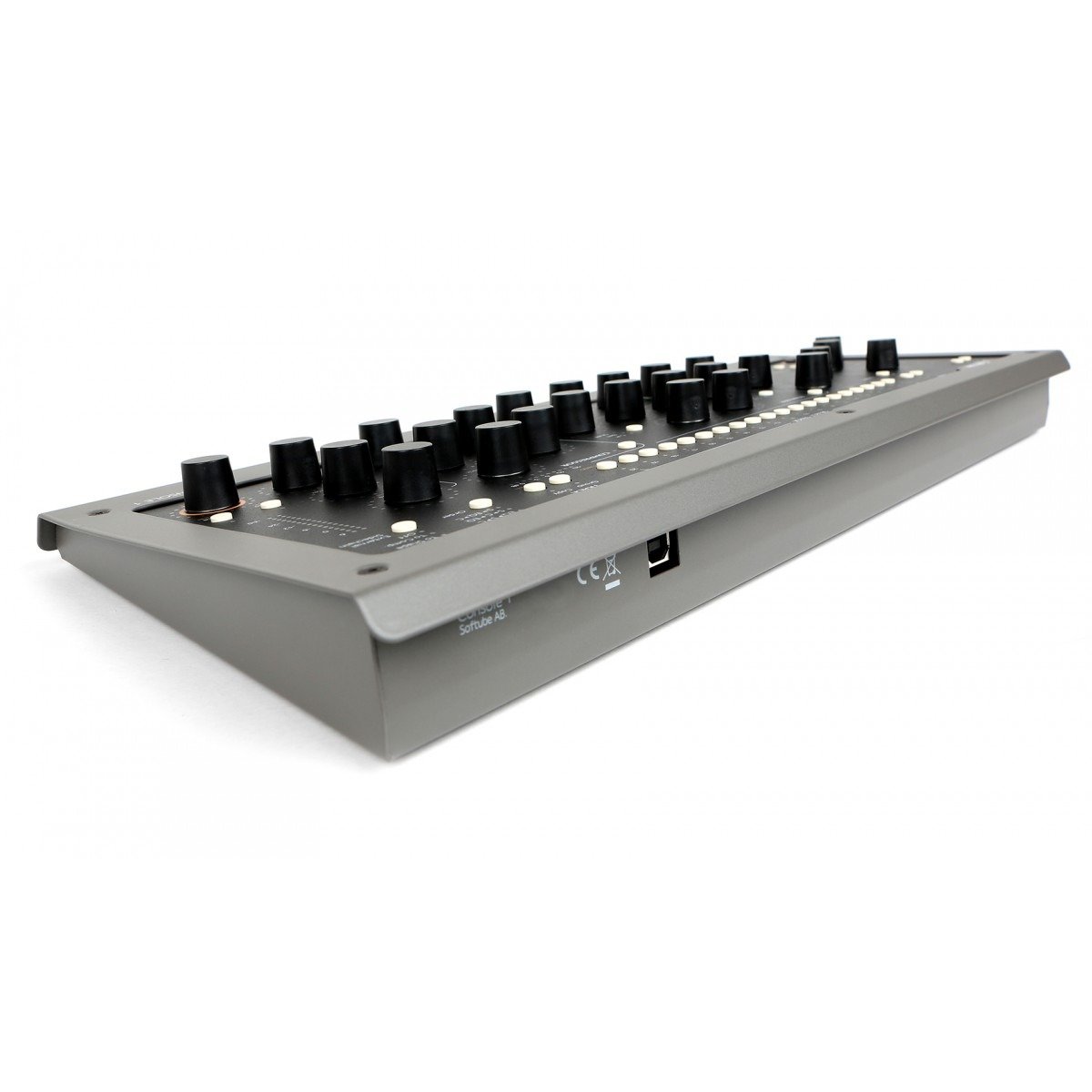
USB connector (Type B)

Power Supply:

USB bus powered

Power:

500 mA or less

Dimensions:

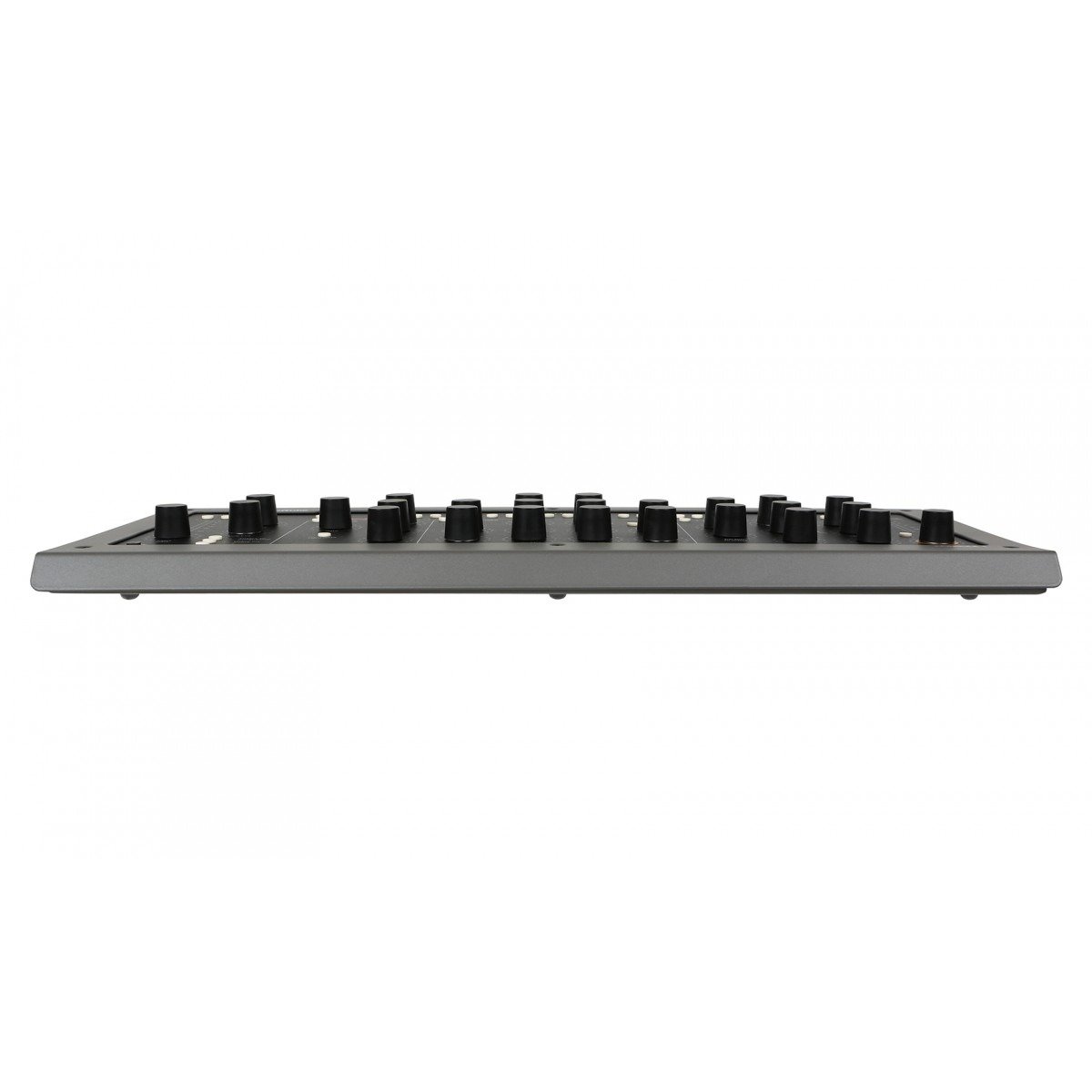
428 x 42 x 189 mm (W x H x D)

Weight:

1.95 kg

Related Products

x